
Choose a source, check file limits and complete the upload before leaving the page
Before you begin
- Wait until the file has finished saving
- Common audio formats include MP3, WAV and M4A. Video uploads can include MP4 and MOV where your plan supports them
- The upload area shows the size and duration limits for your account
- Keep the original recording for checking the result
Upload a recording
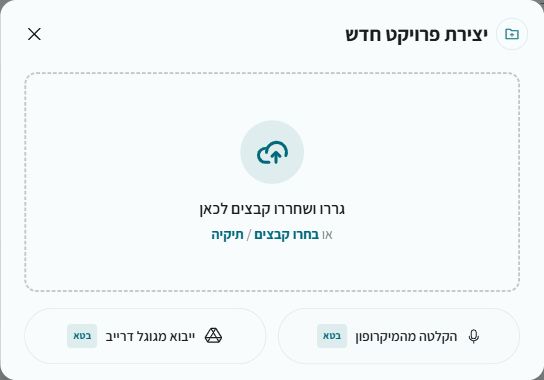
- On the dashboard, select New transcription and choose local upload, recording or an available connected source
- Select the recording or drag it into the upload area
- Review the output type, quality and displayed credit cost
- Start transcription and keep the window open until the upload finishes
After uploading
Once processing begins, you can close the browser and return later. Existing SRT, VTT, TXT or JSON subtitles can be attached to suitable local media. Local subtitles cannot currently be attached to media selected from Google Drive
If the upload stops
Check your connection, file format and the limits in the upload dialog. Keep the computer awake during a large upload. Reducing file size does not shorten recording duration; if it is too long, split the recording